Before you sell or trade in your phone: 10 things to check
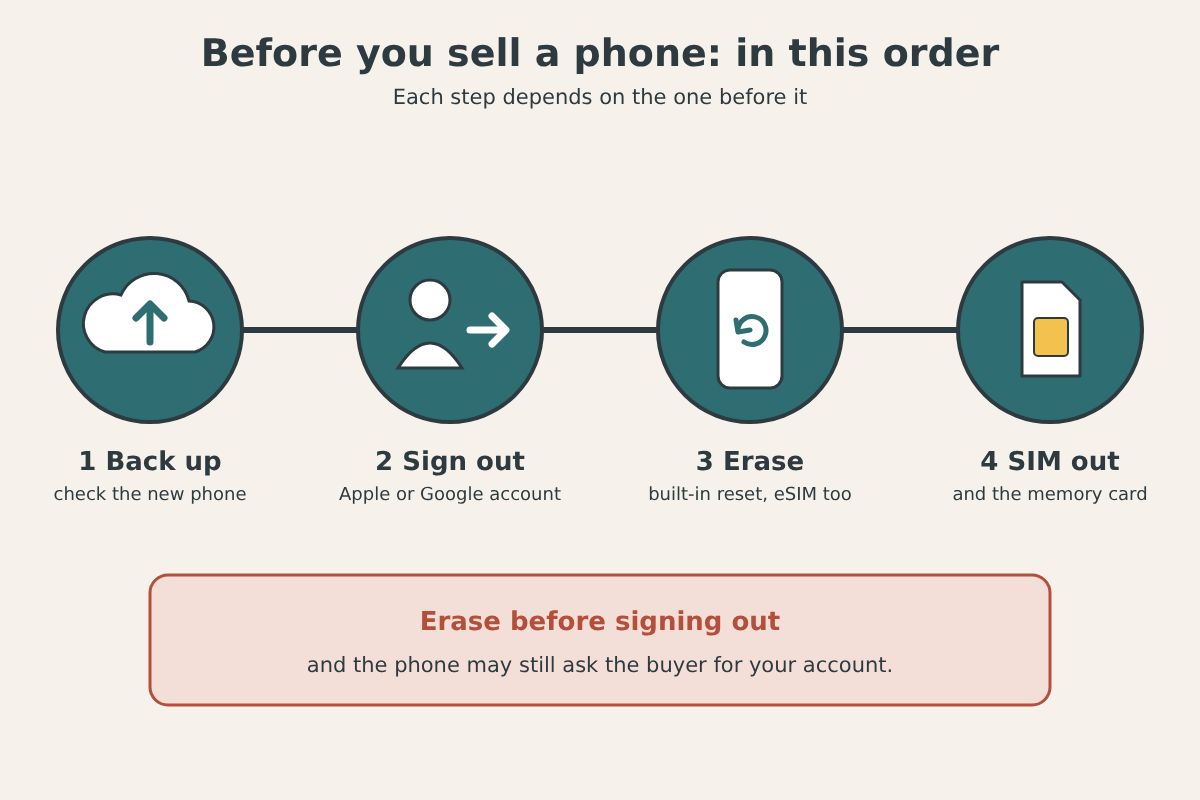
Back it up, sign it out, wipe it, take the SIM out: the order to follow before your old phone goes to someone else.
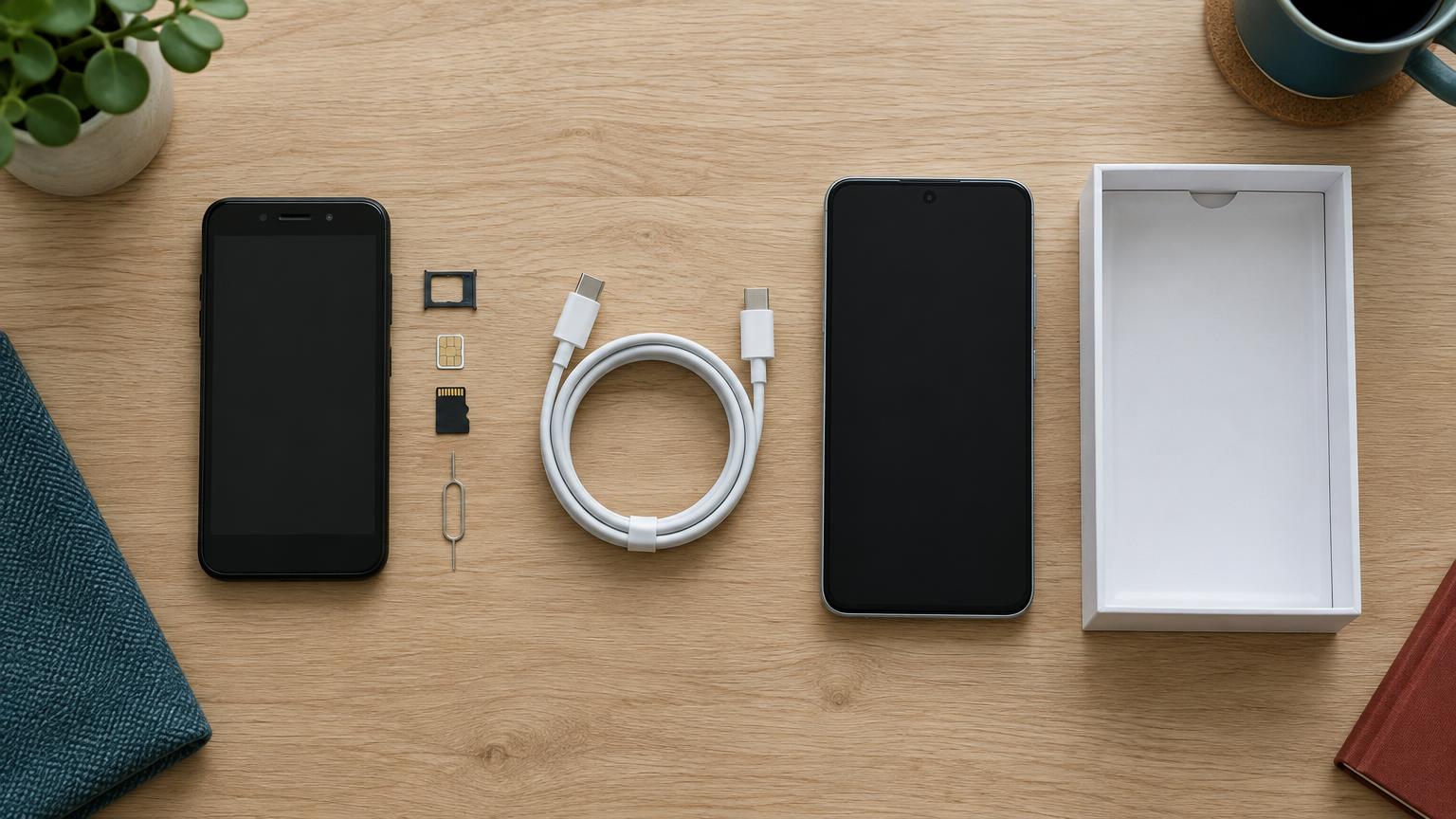
Ready when: your data is backed up and on the new phone, you've signed out of your accounts, the old phone is erased, and the SIM and memory card are out.
The order matters more than any single step: back it up, sign it out, wipe it, take the cards out. Do it the other way round and you can lose photos, or hand the buyer a phone that still asks for your account. This list follows Apple's and Google's own support pages and the Federal Trade Commission's advice, checked in November 2026. Menus differ between phone makers and software versions, so if a step doesn't match your screen, check your manufacturer's support site.
The Before List
- Back up the phone. Make a full copy before you change anything.
- Move everything to the new phone and check it. Open your photos, messages and authenticator apps on the new one first.
- Update accounts if your number is changing. Add the new number for sign-in codes before the old one stops working.
- Make sure you know your account passwords. You'll need your Apple Account or Google Account password to sign out cleanly.
- Unpair your watch and sort out the warranty plan. Unpair a smartwatch, and cancel or transfer any extended warranty.
- Sign out of your accounts. On an iPhone, sign out of your Apple Account; on Android, remove your Google Account.
- Deregister iMessage if you're leaving the iPhone. It's a separate step from signing out.
- Erase the phone. Use the built-in reset, and erase the eSIM too if you're selling.
- Take out the SIM and memory card. Keep the SIM if you're keeping the number.
- Finish any open repair before a trade-in. An unfinished repair can stop an iPhone trade-in.
Why each one matters
The backup is your safety net for every step after it. The FTC, Apple and Google all start here: Apple's backup copies the phone's information so you can move it to a new device, and Google says a factory reset uninstalls every app and its data, so only what's in your Google Account can come back.
Check the new phone before you wipe the old one. On iPhone, Apple's Quick Start moves your information straight across from an old phone running iOS 11 or later. Open the apps you'd hate to lose, especially any authenticator app: the FTC notes you may need to set authenticator apps up again on a new phone.
A changing number can lock you out. Apple says that if your number will change, you must add another trusted phone number to your Apple Account so you don't lose access, and the FTC suggests updating the number on every account that uses it.
Passwords get asked for at the worst moment. Apple says you may need your Apple Account password if you trade in at an Apple Store, and that with Stolen Device Protection on, changing it at the store can mean a one-hour security delay, so reset it at home if you've forgotten it. Google says to confirm your Google Account password by signing in on another device, and if you recently reset that password, to wait 24 hours before a factory reset.
Watches and plans are easy to forget. Apple's list includes unpairing an Apple Watch from the iPhone and cancelling or transferring an AppleCare plan to the new owner.
Signing out is what frees the phone for its next owner. On iPhone with iOS 26 or later, Apple's steps are Settings, then your name, then Sign Out (on iOS 18 or earlier, you also enter your password and tap Turn Off). On Android, Google's steps are Settings, then Passwords & accounts (or Users & accounts), then your account and Remove account. Google says a phone that has been reset asks for the Google Account that was on it, to show the reset was done by you or someone you trust, and a buyer can't answer that. Apple adds removing the old phone from your list of trusted devices once it's gone.
iMessage needs its own goodbye. If you're moving to a non-Apple phone, Apple says to deregister iMessage, which is a separate step from signing out.
The reset is what actually removes your data. The FTC says restoring or resetting the phone erases contacts, texts, photos, videos and browsing history. On iPhone, go to Settings, General, Transfer or Reset, then Erase All Content and Settings; Apple says this also removes your Apple Pay cards and turns off Find My and Activation Lock, and if your phone uses an eSIM, choose to erase the eSIM too when you're selling. Erasing the phone doesn't delete anything from iCloud. On Android, Google says a factory reset can take up to an hour, so charge the phone to at least 70% and keep it on Wi-Fi or mobile data.
The cards hold data of their own. The FTC says to take out the SIM card (keep it if you're keeping your number) and any SD memory card. For Android trade-ins, Apple adds removing cases and screen protectors.
Repairs can block a trade-in. Apple says to check Parts and Service History in Settings; if a part shows Finish Repair, you need to finish that repair before you can trade the iPhone in.
If the phone has already gone, Apple suggests asking the new owner to erase it, or erasing it yourself from Find Devices on iCloud.com, then changing your Apple Account password and removing it from your trusted devices. If you're not selling or giving it away at all, the FTC suggests recycling it through the manufacturer, your wireless provider or a local electronics store.
Countdown
The week before
Back up the phone and set up the new one. Check your photos, messages and authenticator apps on the new phone. Add your new number to accounts if it's changing.
The day before
Confirm your Apple Account or Google Account password, and don't reset it now, since Google advises waiting 24 hours after a password change before a factory reset. Unpair your watch and check Parts and Service History on an iPhone.
On the day
Sign out of your accounts, deregister iMessage if you're leaving the iPhone, then erase the phone. Take out the SIM and memory card, and hand it over.
Mistakes people make
- Erasing the phone before signing out of your account.
- Wiping the old phone before checking that everything arrived on the new one.
- Forgetting the authenticator app, then losing access to accounts that need its codes.
- Leaving the SIM or memory card in the phone.
- Deleting photos one at a time on an iPhone signed in to iCloud, which deletes them from iCloud and your other devices too.
Ready check
- Is everything backed up and working on your new phone? If not, see items 1 and 2.
- Are you signed out of your Apple Account or Google Account? If not, see items 4 and 6.
- Has the phone been erased with the built-in reset? If not, see item 8.
- Are the SIM and memory card out? If not, see item 9.
