Before you set up a new router: 10 things to check
Update the firmware, change the admin password, pick WPA3 and switch off WPS, UPnP and remote management: what to do before the rest of the house connects.
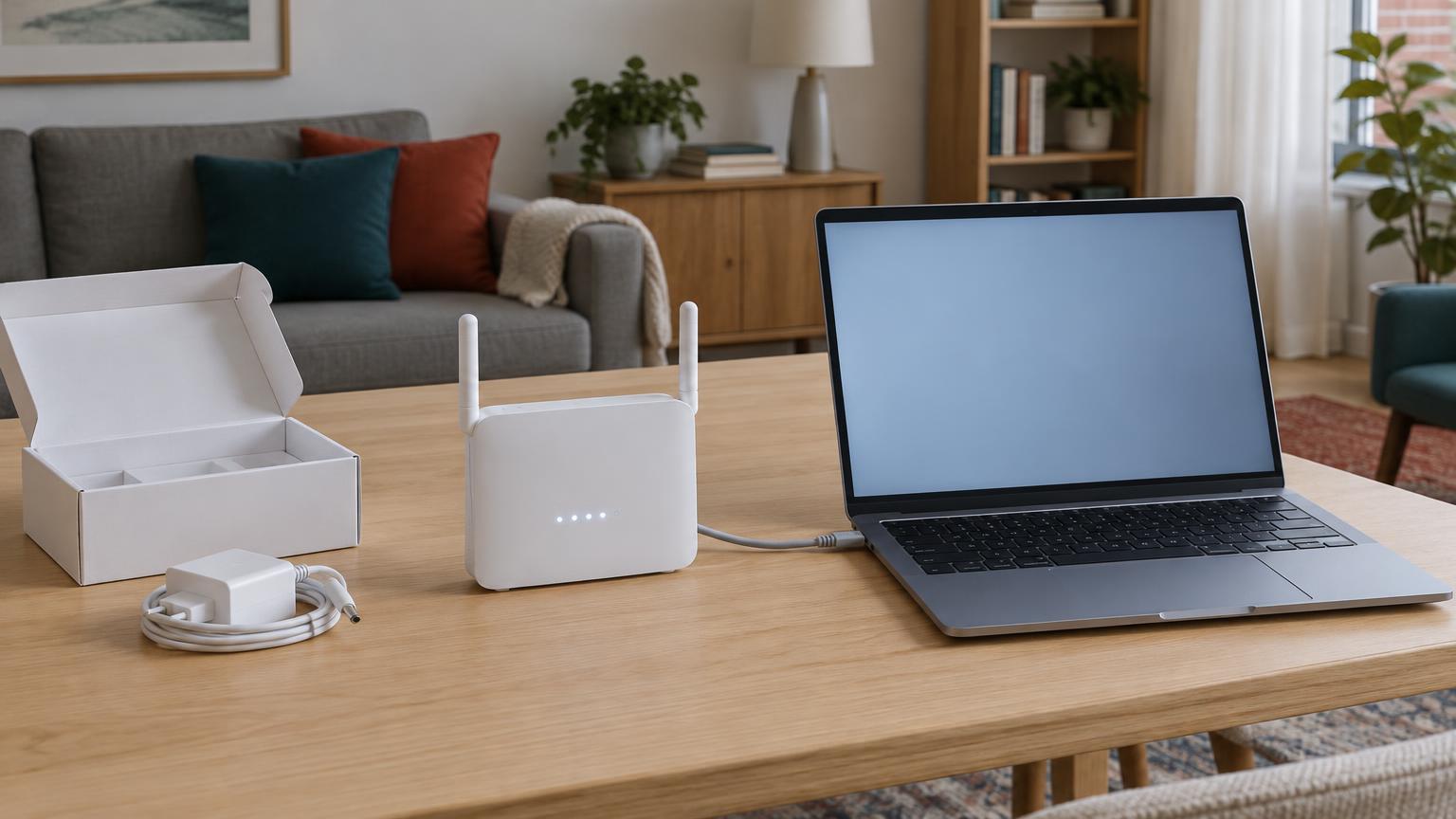
Ready when: the router runs the latest firmware, the default admin password is gone, Wi-Fi uses WPA3 or WPA2, and WPS, UPnP and remote management are off.
Do the setup on one laptop before any other device joins: update first, then lock down the admin account, then the Wi-Fi itself. A router left on its factory settings is easier to break into, and anyone who gets into its admin page can undo every other step. This list follows the Federal Trade Commission's and the Cybersecurity and Infrastructure Security Agency's (CISA) home network guidance, checked in November 2026. Menu names differ between router makers, so search your router maker's support site for the exact steps, or ask your internet provider if it supplied the router.
The Before List
- Update the firmware before you connect anything else. Check the maker's website for the newest version.
- Register the router and turn on update alerts. Or turn on automatic updates if the router offers them.
- Change the admin username and password. Default logins can often be found online or printed on the device.
- Rename the network. Pick a name that doesn't give away your name, address or router brand.
- Set a strong, unique Wi-Fi password. It's separate from the admin password, and both need changing.
- Turn on WPA3 Personal, or WPA2 Personal if that's all you have. If the router only offers WEP or WPA, update it or replace it.
- Turn off WPS, UPnP and remote management. Turn UPnP back on only if a device you use truly needs it.
- Check the router's firewall is on. Some firewall features ship switched off.
- Set up a guest network. Visitors and their devices stay off your main network.
- Log out of the admin page when you're done. Don't leave it signed in.
Why each one matters
Firmware comes first because it fixes known flaws. CISA says to check the manufacturer's website for the latest firmware, and the FTC says to do that before you set up the router. If your internet provider supplied the router, the FTC suggests asking whether it sends updates automatically.
Update alerts keep it patched after today. The FTC suggests registering the router with the manufacturer and signing up for update notifications, and CISA notes that some routers can update themselves.
The admin password protects everything else. CISA warns that default usernames and passwords may be easy to find online or even printed on the router, so changing them protects it from an attack that uses those defaults. The FTC explains why it matters so much: the admin account controls the router's settings, including the Wi-Fi password, so someone who gets in could undo your other security steps. It also says not to use your name, your address or the router's brand in the login name or password.
The network name is public to anyone in range. CISA suggests changing the default name to one that isn't tied to your identity or your location.
The Wi-Fi password is the one you'll share. The FTC treats it as one of two passwords to reset, alongside the admin password: a unique, secure Wi-Fi password keeps strangers off your connection. Without one, it says, anyone in range can use your internet, people nearby might see what you do online, and a crime committed over your connection could be traced back to you.
Encryption decides who can read what crosses your network. The FTC calls WPA3 the newest and best encryption available and says to choose WPA3 Personal or WPA2 Personal. It calls WEP and WPA outdated and not secure: if those are the only options, update the router's software and look again, and if WPA2 or WPA3 still isn't offered, consider a new router. CISA also recommends WPA3 Personal.
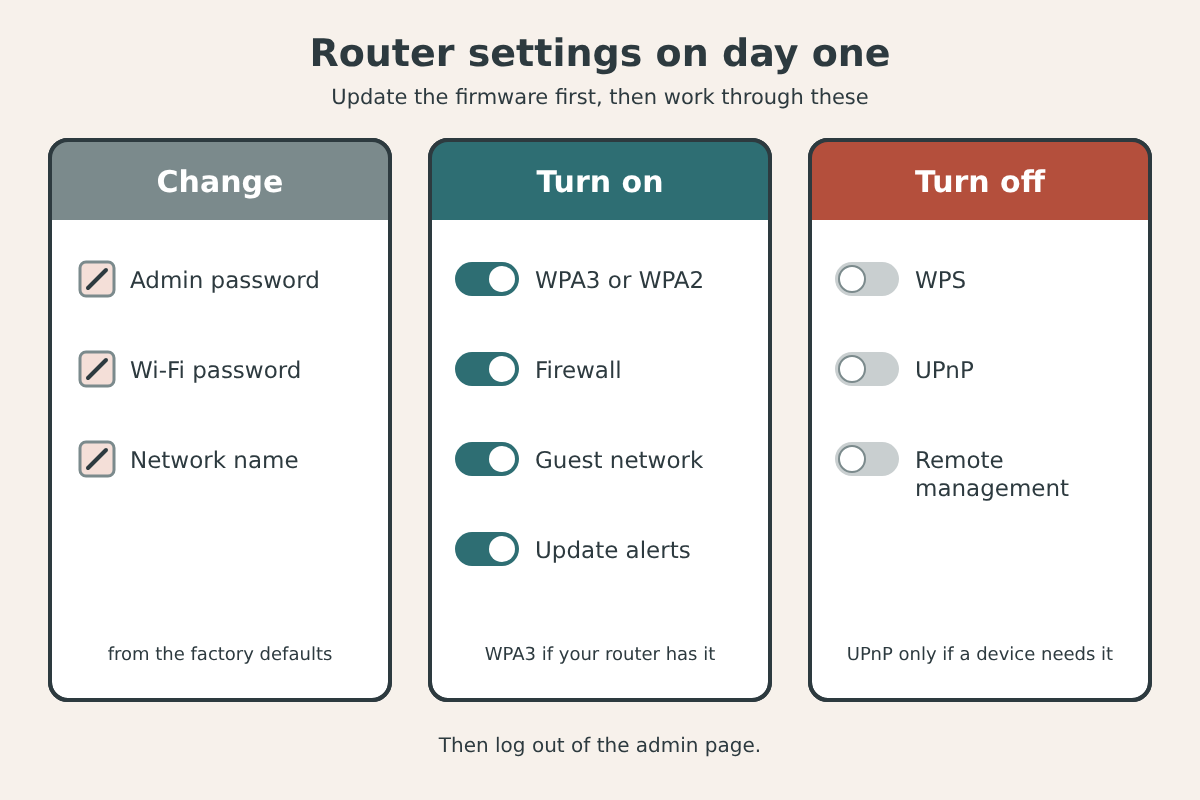
Three convenience features are worth switching off. The FTC says remote management, which lets you change settings over the internet, Wi-Fi Protected Setup (WPS), which connects devices at the press of a button, and Universal Plug and Play (UPnP), which lets devices find each other, all make the router less secure. CISA explains the reasons: a design flaw in WPS's PIN method makes it much faster to guess, and malware inside your network can use UPnP to get around the router's firewall. CISA says to disable UPnP unless you have a specific need for it, so if a device stops working after you turn it off, check that device's instructions before turning UPnP back on.
The firewall is built in but not always on. The FTC says most routers have a firewall that helps block malware and hackers and suggests checking it's switched on, and CISA notes that some firewall features are off by default.
A guest network keeps visitors' devices away from yours. The FTC says many routers can run a guest network with its own name and password, so fewer people know your main password, and a guest's phone with malware on it can't reach the devices on your primary network.
Logging out closes the door you just used. The FTC says that while you're logged in as administrator, the account can change passwords and security settings, so log out once setup is done.
Once the router is set, CISA suggests using the tools on your router maker's website to watch for devices you don't recognize joining your network. It also suggests switching Wi-Fi off during travel or long absences, or using the wireless schedule many routers offer, which is worth adding to what to check before leaving your house empty. If the new router came with a new phone or laptop, what to do before you sell or trade in your phone covers the old device.
Mistakes people make
- Connecting every device in the house before updating the firmware.
- Changing the Wi-Fi password but leaving the default admin password.
- Naming the network after your family or street address.
- Keeping WEP or WPA because an old device won't connect to WPA2.
- Leaving WPS on so the button can be used for one device.
- Giving visitors the main Wi-Fi password instead of a guest network.
Ready check
- Is the router on its latest firmware, with update alerts on? If not, see items 1 and 2.
- Have you changed the admin password, the Wi-Fi password and the network name? If not, see items 3 to 5.
- Is the Wi-Fi set to WPA3 or WPA2 Personal? If not, see item 6.
- Are WPS, UPnP and remote management off, and the firewall on? If not, see items 7 and 8.
